> ## Documentation Index
> Fetch the complete documentation index at: https://na-e282180f.mintlify.site/llms.txt
> Use this file to discover all available pages before exploring further.
# Fedora
> The easiest one of the lot. Looks like Ubuntu, feels like Linux. Perfect for curious beginners.
Clueless about Linux but still want to join the cool kids club? Start here. Seriously, you won’t cry (much).
 ## Booting into Fedora
### Step 1: Download the ISO
Grab the Fedora Workstation ISO from [here](https://fedoraproject.org/workstation/download). Yes, you need an ISO. No, not the camera setting.
***
### Step 2: Burn That ISO 🔥
Time to turn your USB into a bootable Fedora launcher. You’ll need a USB stick or SD card (minimum 8GB unless you're into living dangerously).
Use one of these tools:
* [Balena Etcher](https://etcher.balena.io/) — beginner-proof (a monkey could use it)
* [Rufus](https://rufus.ie/en/) — Windows-y but solid
* [Ventoy](https://www.ventoy.net/en/) — for the tinkerers
#### Using Balena Etcher (because we like pretty UIs):
1. Download and open it.
2. Plug in your USB (double-check it's empty or useless — it *will* be wiped).
3. Set:
* **File**: Your freshly downloaded Fedora ISO
* **Target**: Your USB
4. Hit **Flash!** and let it do its thing.
## Booting into Fedora
### Step 1: Download the ISO
Grab the Fedora Workstation ISO from [here](https://fedoraproject.org/workstation/download). Yes, you need an ISO. No, not the camera setting.
***
### Step 2: Burn That ISO 🔥
Time to turn your USB into a bootable Fedora launcher. You’ll need a USB stick or SD card (minimum 8GB unless you're into living dangerously).
Use one of these tools:
* [Balena Etcher](https://etcher.balena.io/) — beginner-proof (a monkey could use it)
* [Rufus](https://rufus.ie/en/) — Windows-y but solid
* [Ventoy](https://www.ventoy.net/en/) — for the tinkerers
#### Using Balena Etcher (because we like pretty UIs):
1. Download and open it.
2. Plug in your USB (double-check it's empty or useless — it *will* be wiped).
3. Set:
* **File**: Your freshly downloaded Fedora ISO
* **Target**: Your USB
4. Hit **Flash!** and let it do its thing.
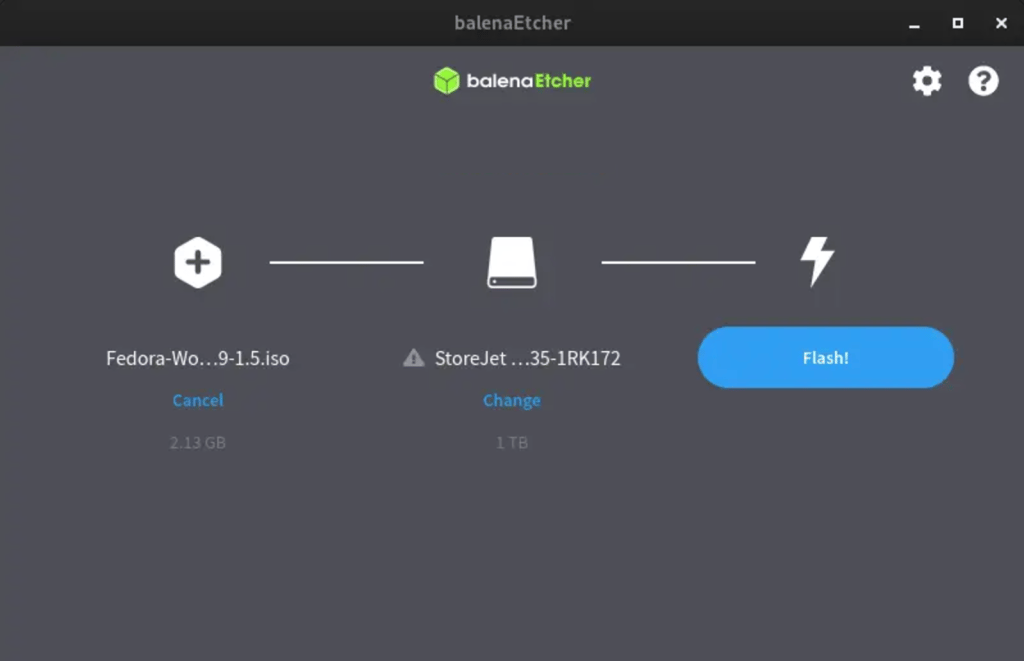 Boom. You now have a Fedora USB that's boot-ready.
***
### Step 3: Shrink That Windows Partition (Sorry, Windows)
1. Hit `Win + X` → Disk Management
2. Right-click your C: drive → "Shrink Volume"
3. Shrink by \~50-100GB (more if you want Fedora to stretch its legs)
4. Voilà — now you’ve got unallocated space Fedora can colonize.
***
### Step 4: Boot Into the Fedora USB
Time to break into your BIOS like a hacker in a bad movie.
1. Reboot your PC.
2. Smash your boot key repeatedly like it owes you money.
* **F12** – Dell, Lenovo, Acer
* **Esc** – HP, ASUS
* **F11** – MSI (because why not)
3. Select the USB that says “Fedora” or something equally obvious.
Boom. You now have a Fedora USB that's boot-ready.
***
### Step 3: Shrink That Windows Partition (Sorry, Windows)
1. Hit `Win + X` → Disk Management
2. Right-click your C: drive → "Shrink Volume"
3. Shrink by \~50-100GB (more if you want Fedora to stretch its legs)
4. Voilà — now you’ve got unallocated space Fedora can colonize.
***
### Step 4: Boot Into the Fedora USB
Time to break into your BIOS like a hacker in a bad movie.
1. Reboot your PC.
2. Smash your boot key repeatedly like it owes you money.
* **F12** – Dell, Lenovo, Acer
* **Esc** – HP, ASUS
* **F11** – MSI (because why not)
3. Select the USB that says “Fedora” or something equally obvious.
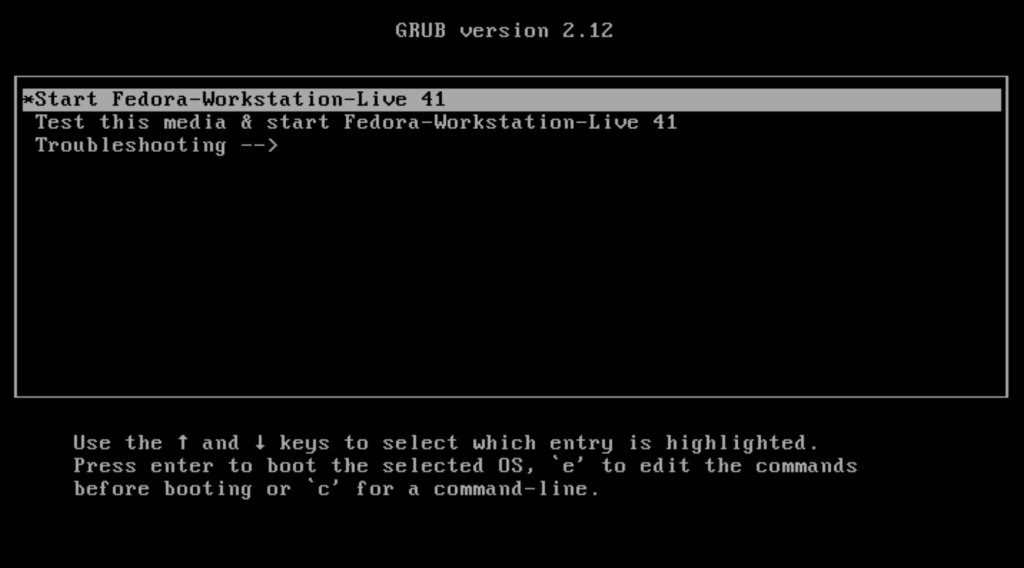 You’ll be given the option to test or install Fedora. Feel free to poke around, or just send it and click **Install**.
***
## Welcome to Fedora 🎉
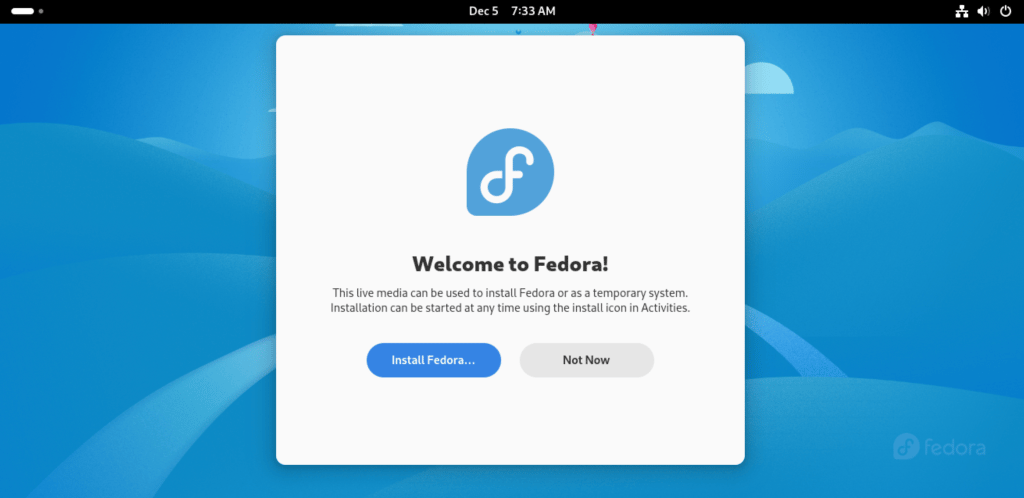
You made it this far. Congrats. You’ll see the Fedora welcome screen — hit **Install** unless you want to admire the boot screen forever.
You’ll be given the option to test or install Fedora. Feel free to poke around, or just send it and click **Install**.
***
## Welcome to Fedora 🎉
You made it this far. Congrats. You’ll see the Fedora welcome screen — hit **Install** unless you want to admire the boot screen forever.
 ***
## Installation
### Language
Pick a language. No, Klingon isn’t available. Click **Continue**.
***
### Installation Destination
This part scares people. It shouldn’t. Here’s the cheat sheet:
**It is scary, believe me, I don't lie**
This is where you could accidentally wipe your entire disk. Pay attention.
You’ve got four options:
1. **Install alongside your other OS** (the lazy-safe route, just select this we are doing custom partitioning only for the sake of it, this is best for beginners)
2. **Wipe the whole disk** (bold move, crazy people only)
3. **Mount existing stuff** (not for us, skip it)
4. **Custom Partitioning** (because we’re doing this like pros)
If you choose the first option, Fedora will handle everything for you. Just check the box so that it uses Unallocated Space we created earlier.
If you are going with any other option than the last one, you can skip the rest of this section and go to the next one.
Click the menu icon in the top-right to launch the storage editor.
***
## Installation
### Language
Pick a language. No, Klingon isn’t available. Click **Continue**.
***
### Installation Destination
This part scares people. It shouldn’t. Here’s the cheat sheet:
**It is scary, believe me, I don't lie**
This is where you could accidentally wipe your entire disk. Pay attention.
You’ve got four options:
1. **Install alongside your other OS** (the lazy-safe route, just select this we are doing custom partitioning only for the sake of it, this is best for beginners)
2. **Wipe the whole disk** (bold move, crazy people only)
3. **Mount existing stuff** (not for us, skip it)
4. **Custom Partitioning** (because we’re doing this like pros)
If you choose the first option, Fedora will handle everything for you. Just check the box so that it uses Unallocated Space we created earlier.
If you are going with any other option than the last one, you can skip the rest of this section and go to the next one.
Click the menu icon in the top-right to launch the storage editor.
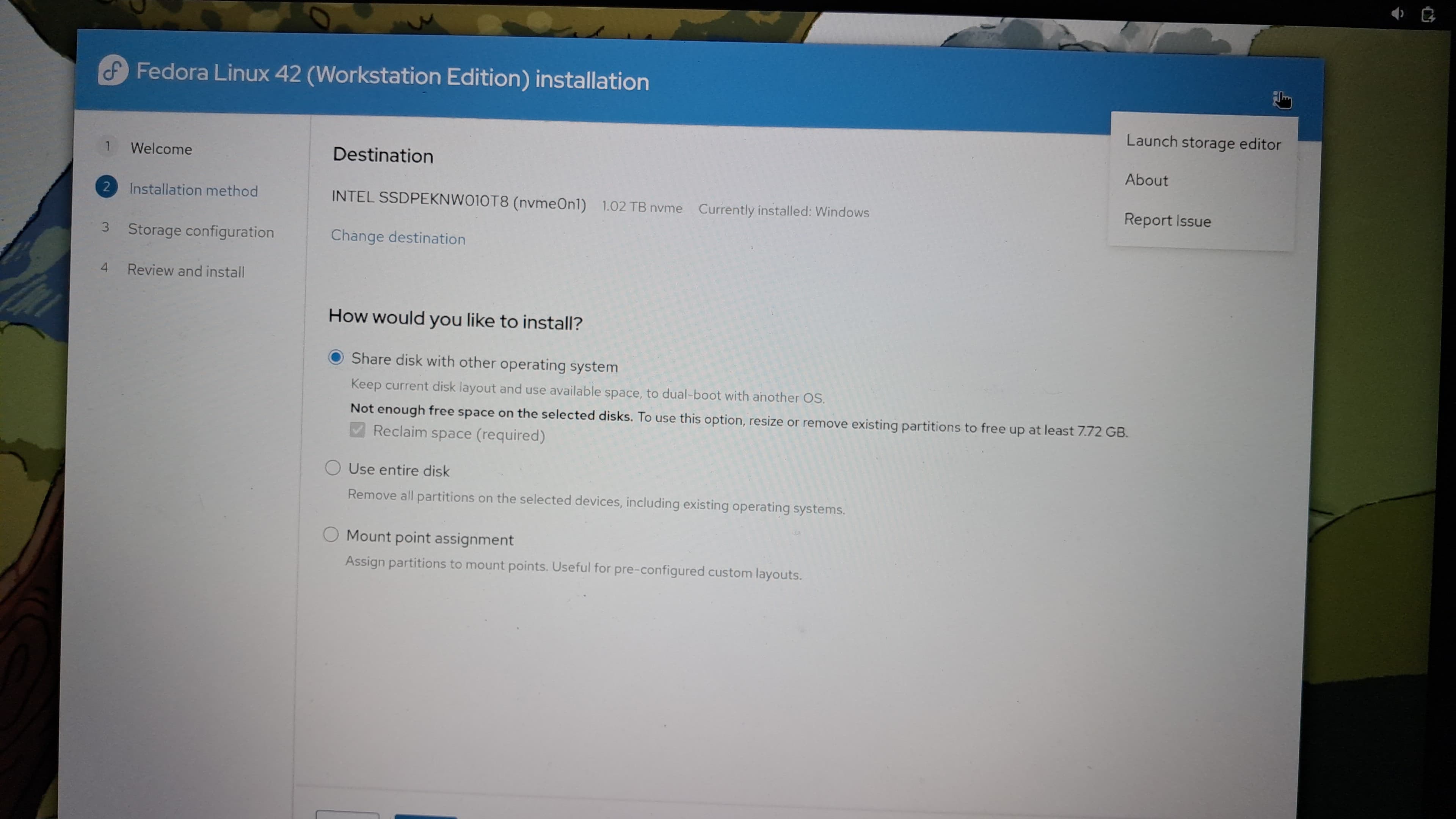 Select the **unallocated space** (from the shrinking earlier), hit the **+**, and let’s make some partitions.
#### Partition 1: EFI
Because UEFI is fancy.
* **Size**: 512MB (not 300MB like the image, ignore it)
* **Type**: EFI System Partition
* **Mount Point**: `/boot/efi`
Select the **unallocated space** (from the shrinking earlier), hit the **+**, and let’s make some partitions.
#### Partition 1: EFI
Because UEFI is fancy.
* **Size**: 512MB (not 300MB like the image, ignore it)
* **Type**: EFI System Partition
* **Mount Point**: `/boot/efi`
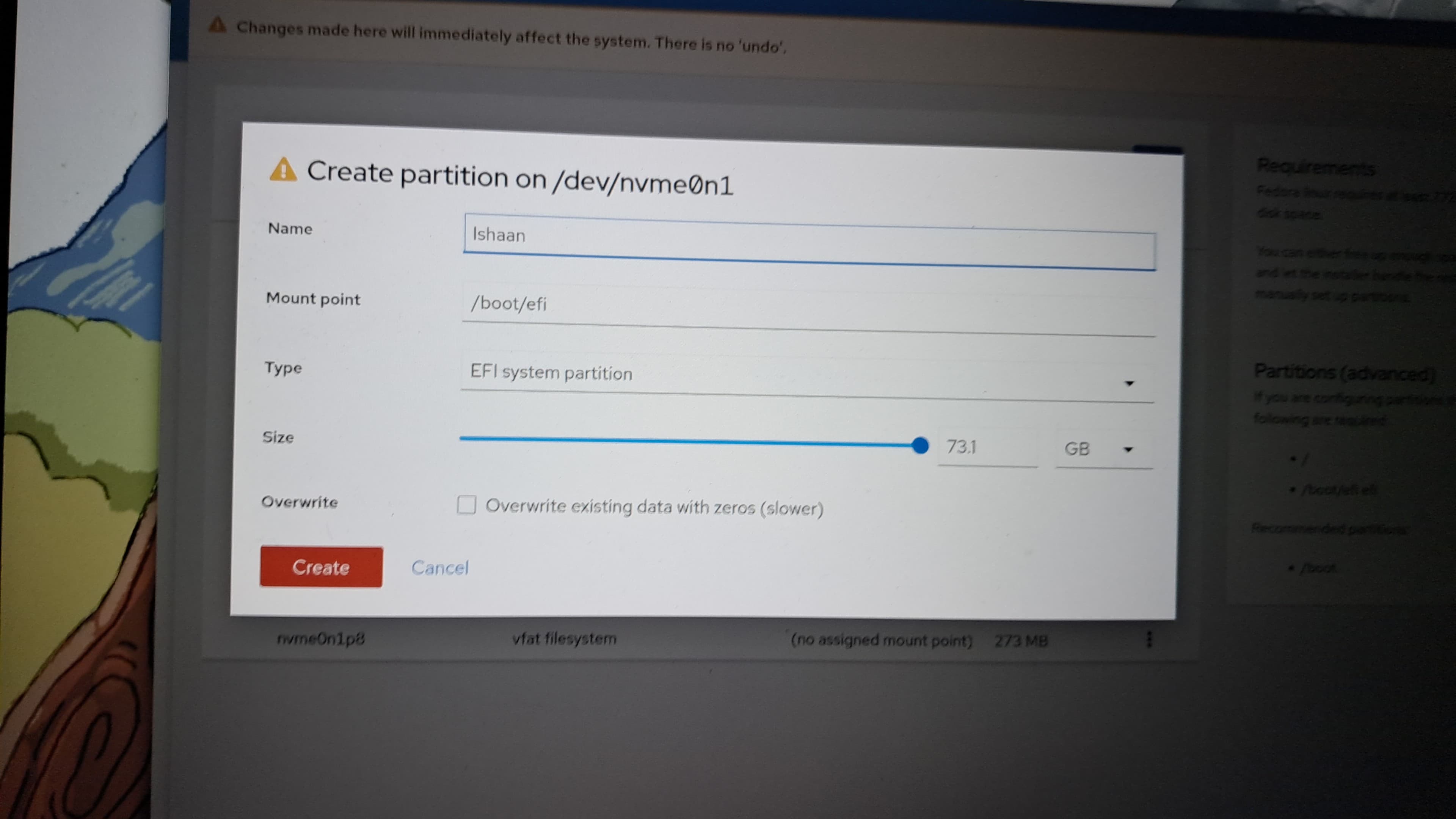 Yep, the image is lying about the size. It’s 512MB. Not negotiable.
#### Partition 2: Swap
When RAM gets tired, Swap steps in.
* **Size**: Same as your RAM (or 2× if your RAM is sad and tiny)
* **Type**: Swap
Yep, the image is lying about the size. It’s 512MB. Not negotiable.
#### Partition 2: Swap
When RAM gets tired, Swap steps in.
* **Size**: Same as your RAM (or 2× if your RAM is sad and tiny)
* **Type**: Swap
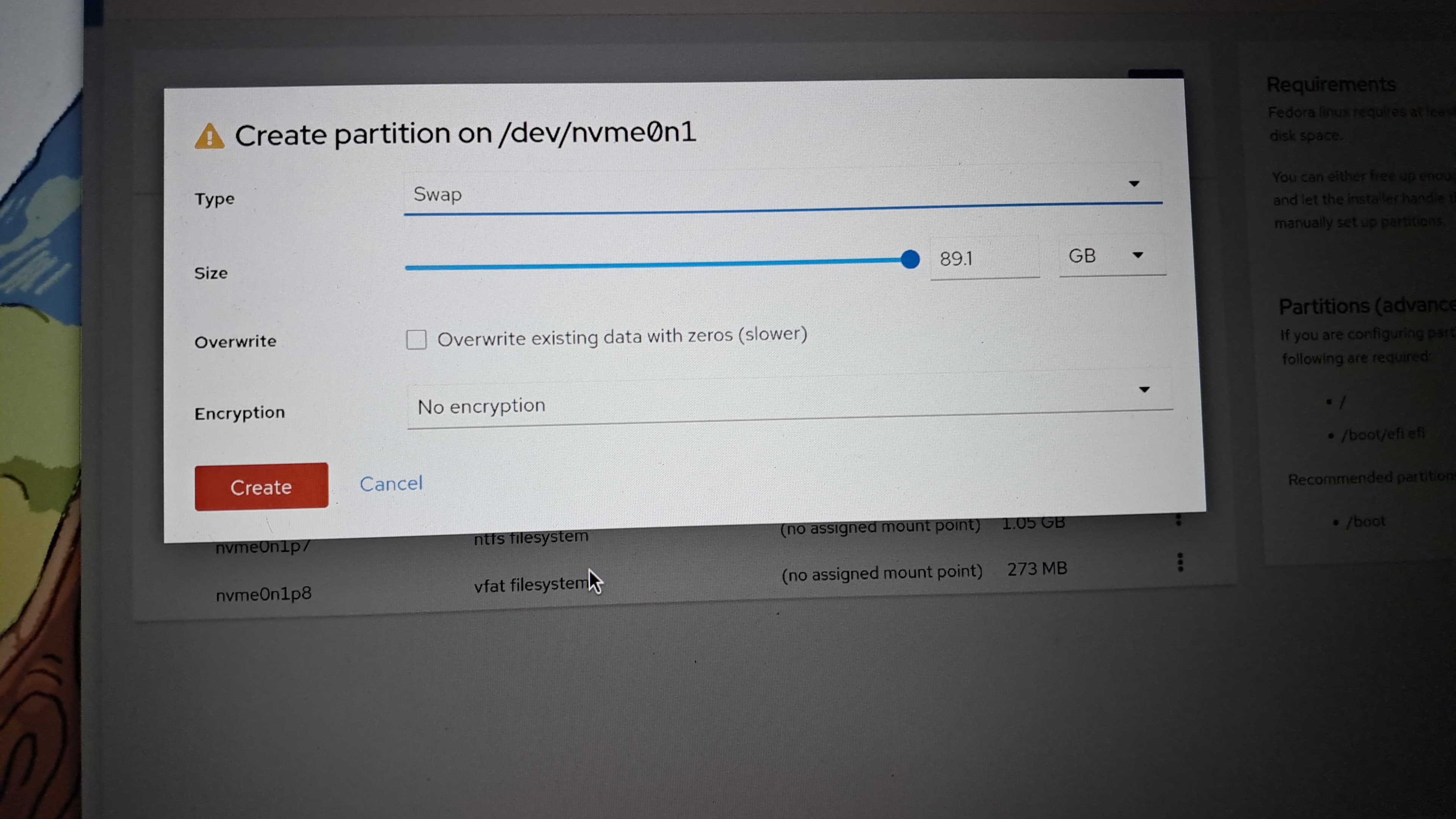 Image is still lying. Don’t trust its numbers either.
#### Partition 3: Root
Where Fedora lives.
* **Size**: Whatever’s left
* **Type**: EXT4 (or BTRFS if you like feeling special)
* **Mount Point**: `/`
Image is still lying. Don’t trust its numbers either.
#### Partition 3: Root
Where Fedora lives.
* **Size**: Whatever’s left
* **Type**: EXT4 (or BTRFS if you like feeling special)
* **Mount Point**: `/`
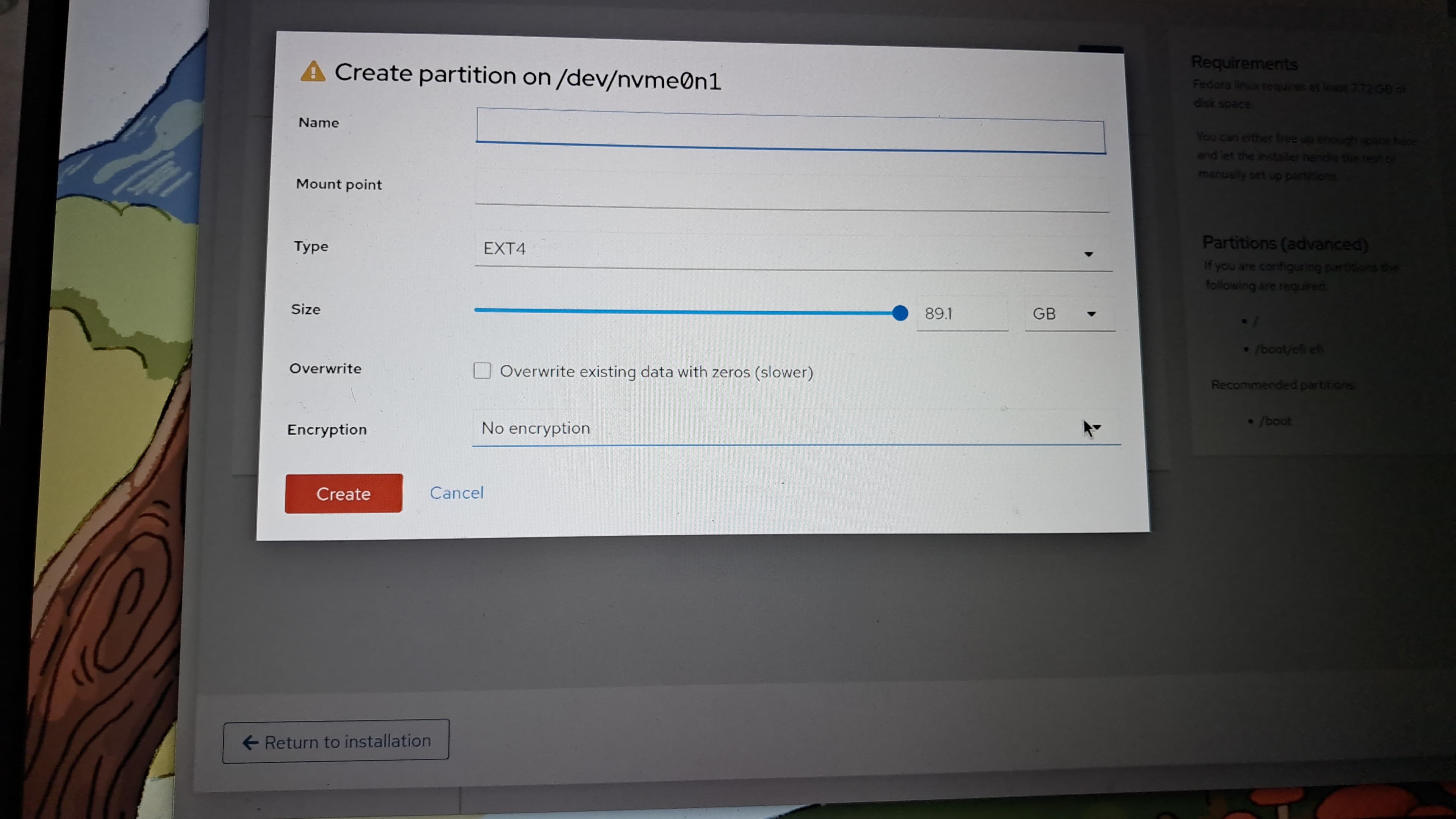 Click **Return to Installation**, verify it all looks like this:
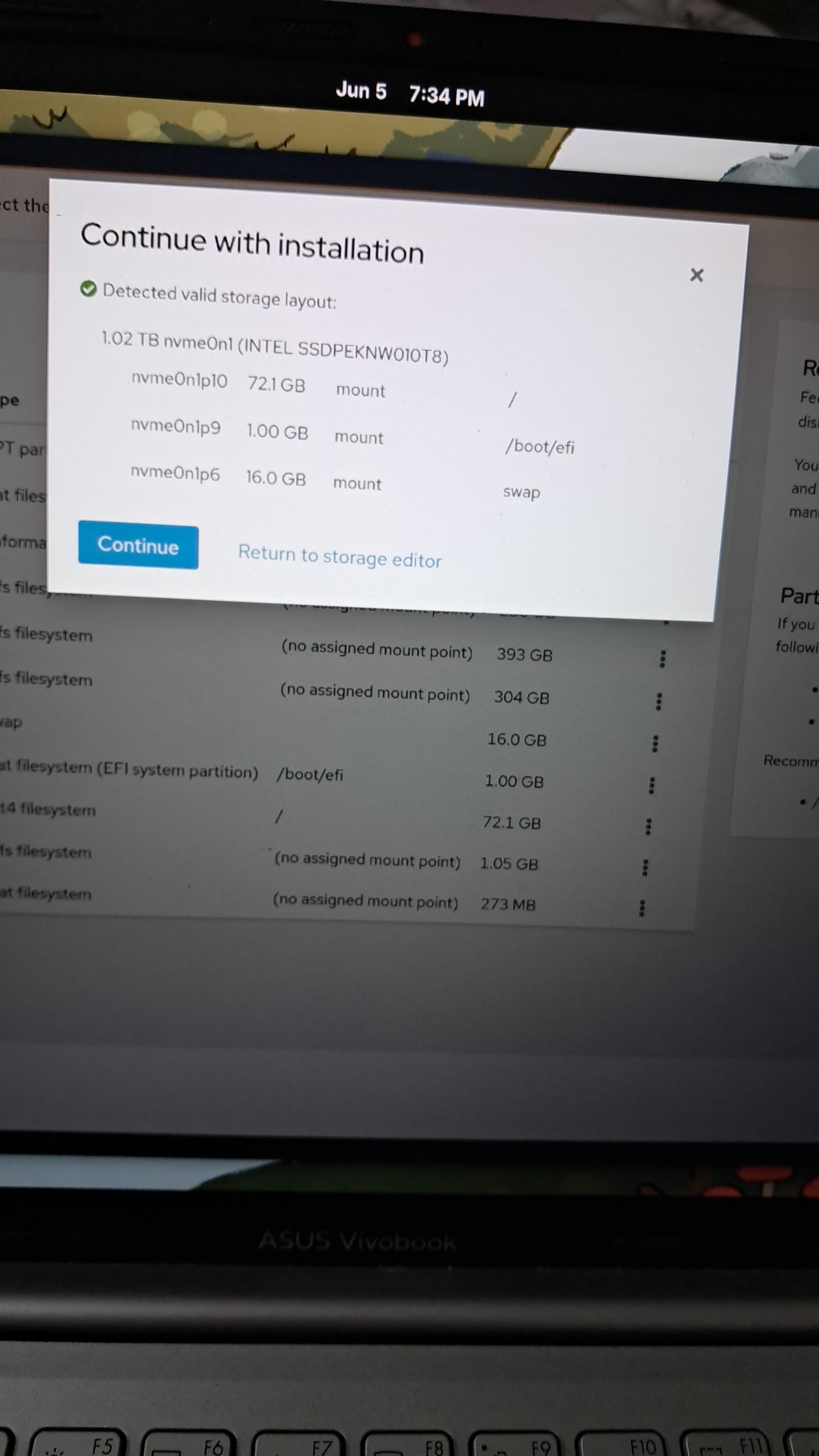 Then this:
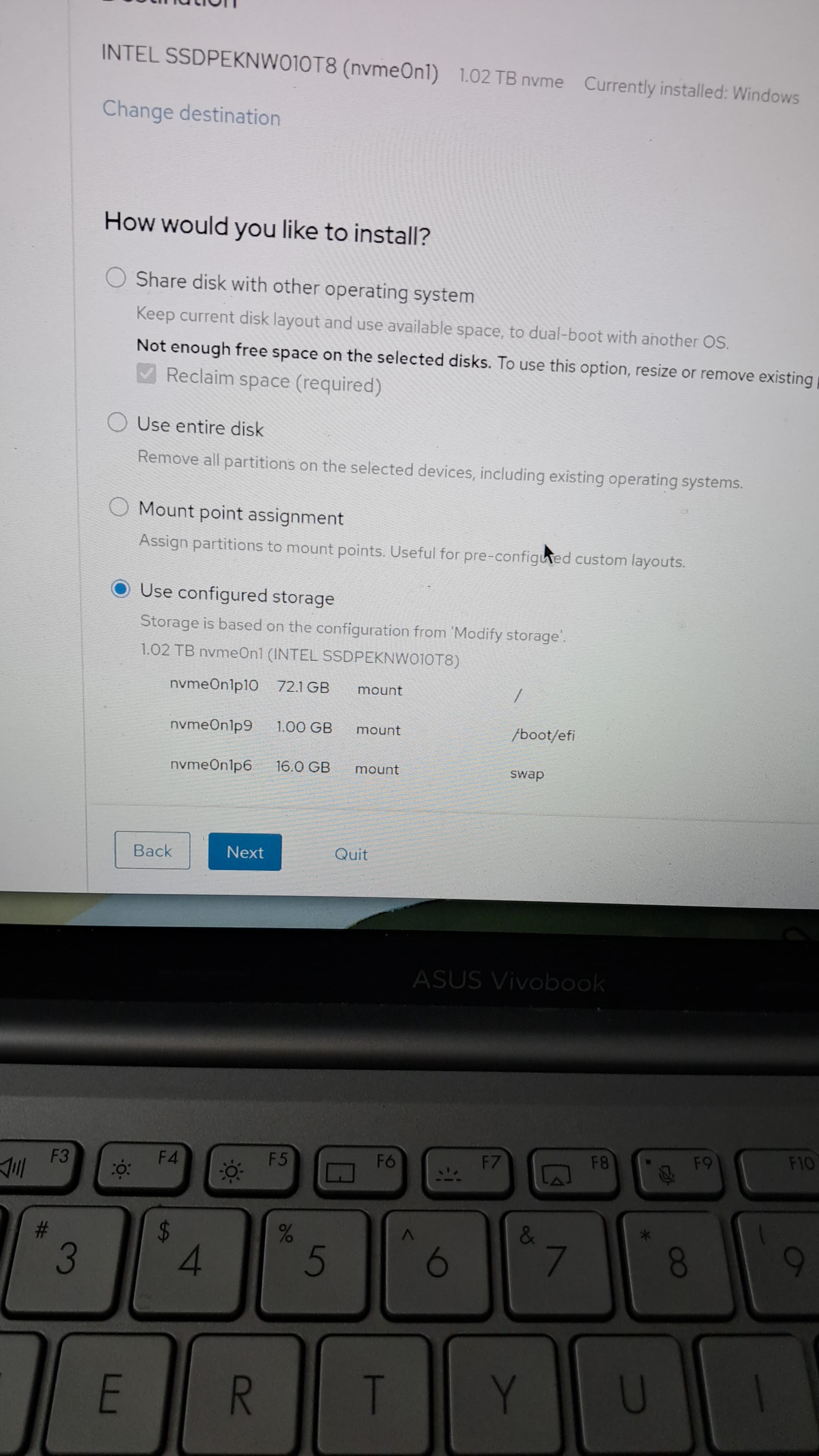 Hit **Next**, review everything (pretend you read it), and then click **Install**.
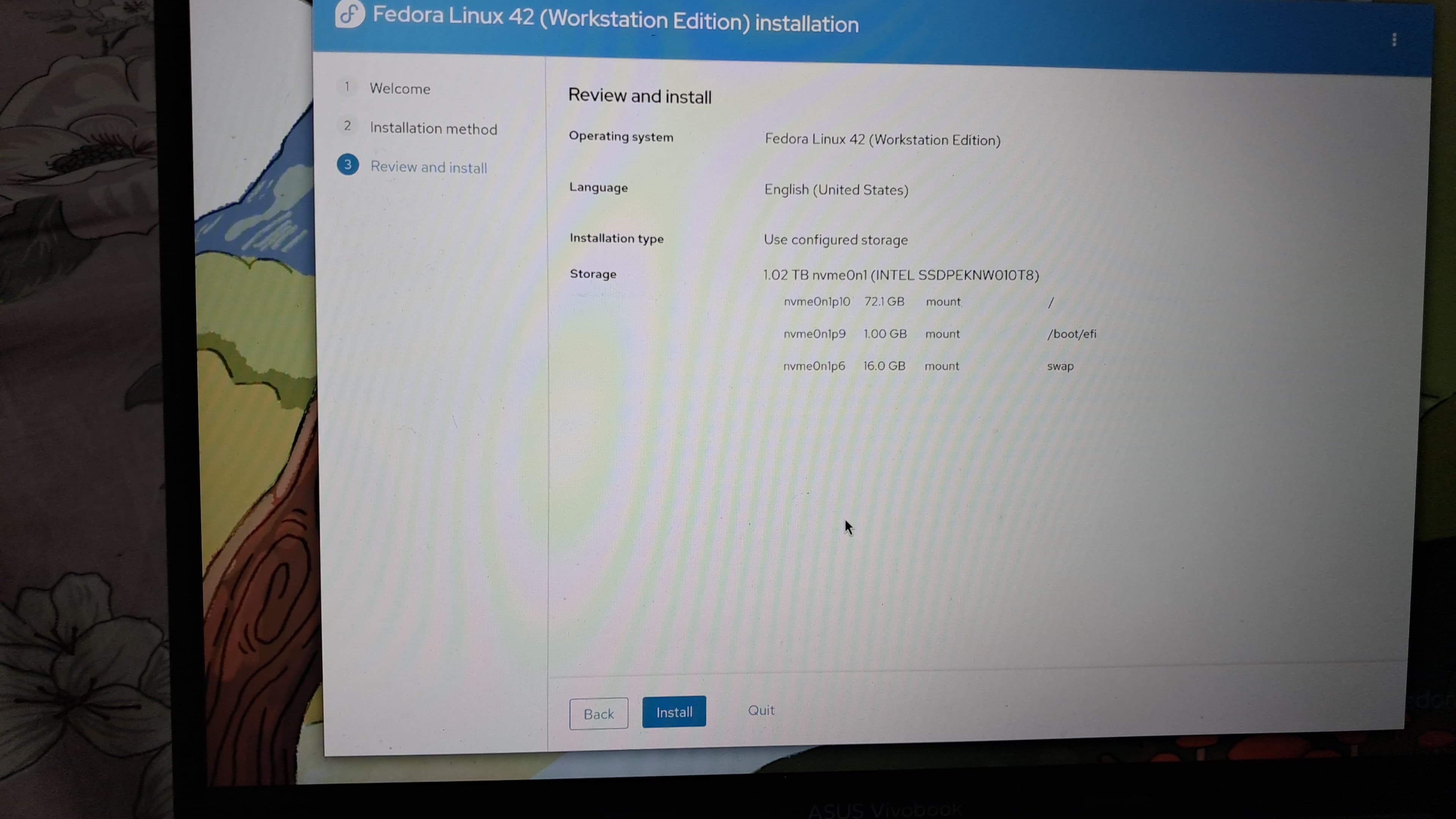 Let it install. Grab a snack. Or cry. Your call.
When it’s done:
Let it install. Grab a snack. Or cry. Your call.
When it’s done:
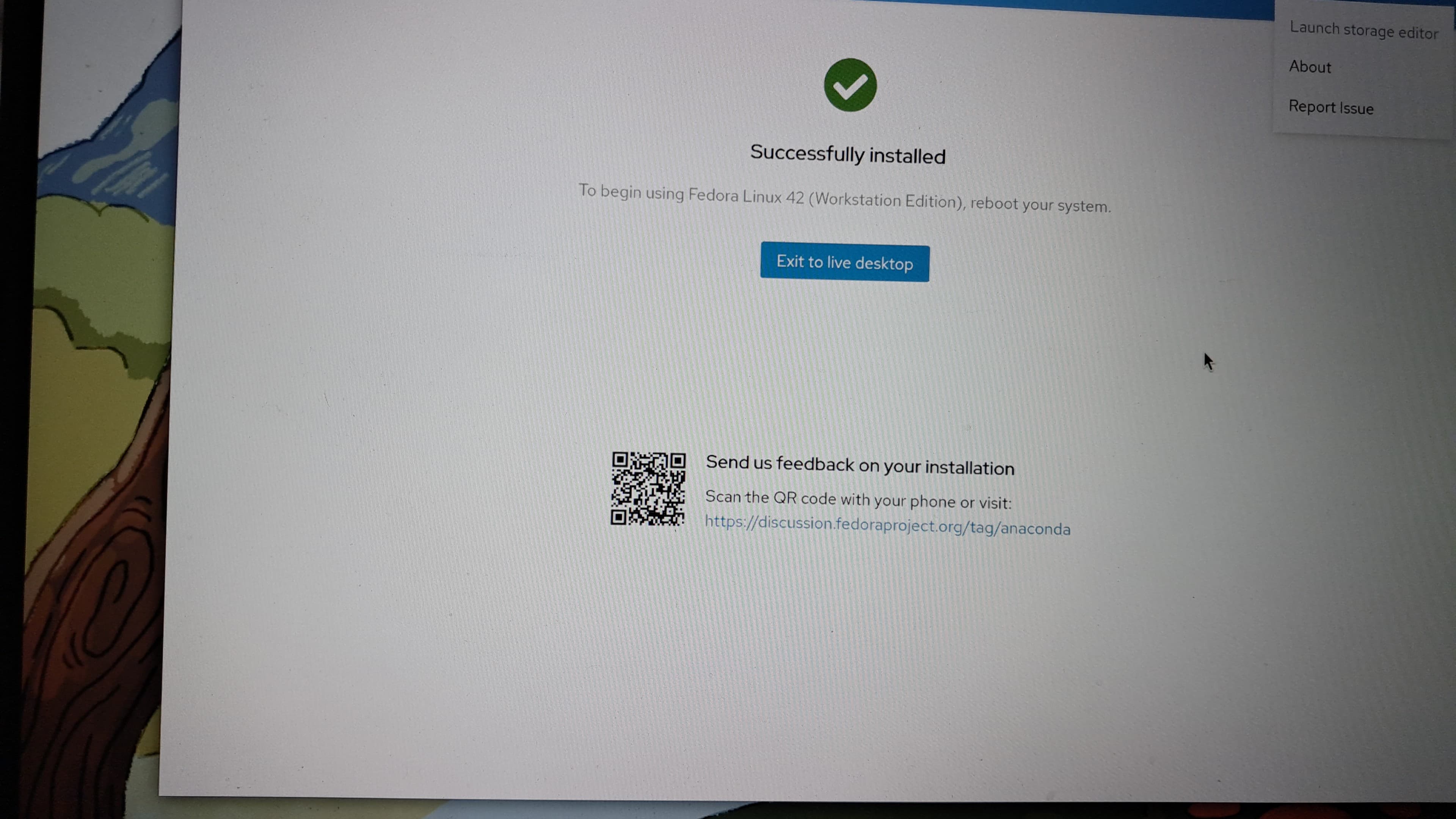 Click **Exit to Live Desktop**, reboot from the top-right menu, and eject the USB. Welcome to Fedora-land.
***
## Finalizing the Installation
Now Fedora asks you a bunch of setup questions because apparently it's needy.
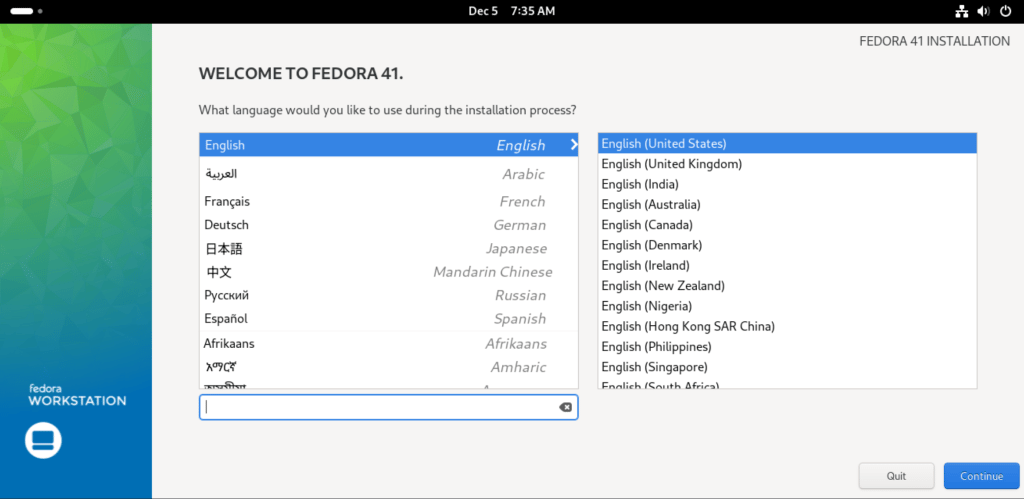
### Language & Keyboard
* Pick what you want. Stick with **US English** unless you're a keyboard masochist.
Click **Exit to Live Desktop**, reboot from the top-right menu, and eject the USB. Welcome to Fedora-land.
***
## Finalizing the Installation
Now Fedora asks you a bunch of setup questions because apparently it's needy.
### Language & Keyboard
* Pick what you want. Stick with **US English** unless you're a keyboard masochist.
 ### Privacy & Location
* Want your laptop knowing where you are? Enable it.
* Paranoid or battery-conscious? Turn it off.
### Timezone
* Select Asia/Kolkata or wherever you actually live. Don’t lie.
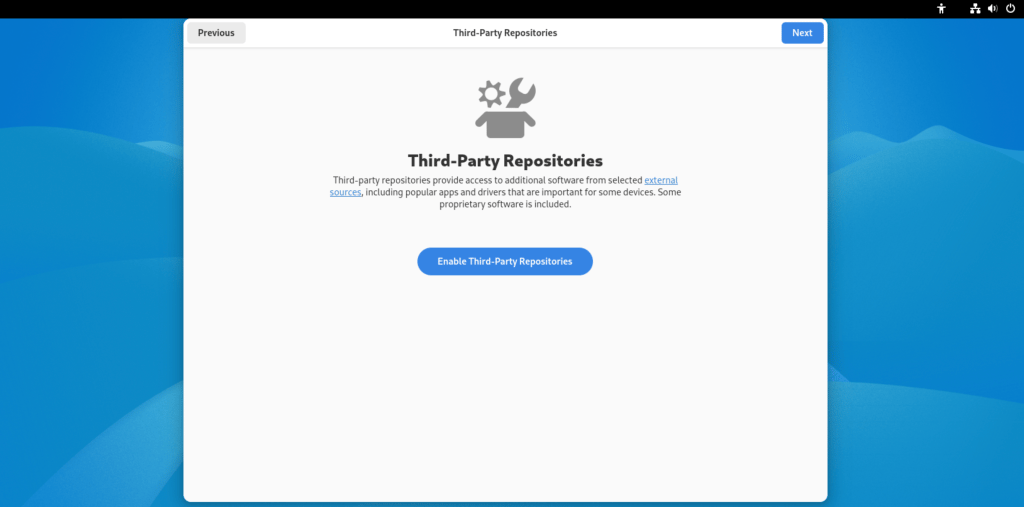
### Third-Party Repos
* This lets you install stuff Fedora pretends doesn’t exist (like proprietary drivers and media codecs). Enable it. You’ll thank yourself later.
### Privacy & Location
* Want your laptop knowing where you are? Enable it.
* Paranoid or battery-conscious? Turn it off.
### Timezone
* Select Asia/Kolkata or wherever you actually live. Don’t lie.
### Third-Party Repos
* This lets you install stuff Fedora pretends doesn’t exist (like proprietary drivers and media codecs). Enable it. You’ll thank yourself later.
 ### Create a User
* Enter your name, username, password.
* Pro tip: **Don't forget the password**. Tattoo it if you must.
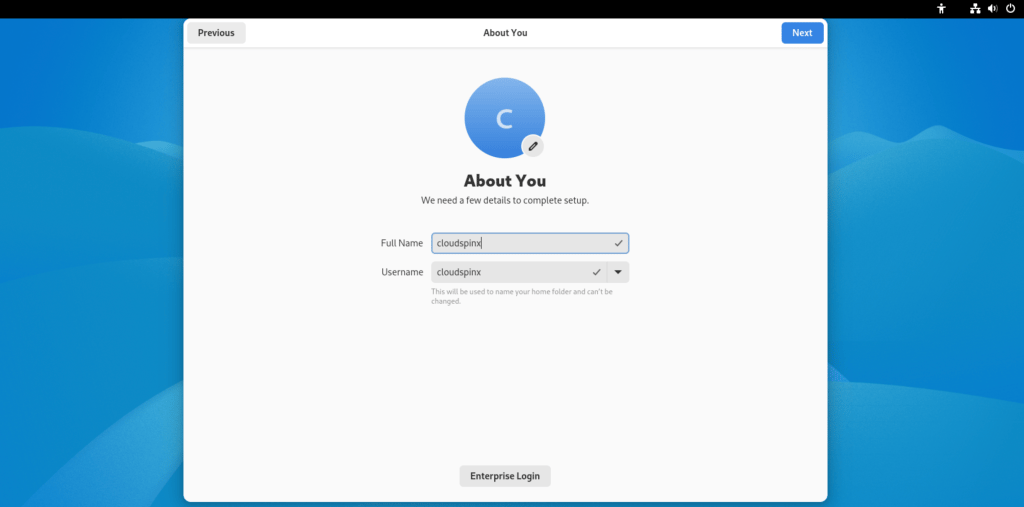
### Create a User
* Enter your name, username, password.
* Pro tip: **Don't forget the password**. Tattoo it if you must.
 Click through the rest, and boom — Fedora is officially yours.
***
## Post-Installation Stuff (The Boring but Necessary Bits)
### Update Everything (Because Why Not?)
Open a terminal and do this:
```bash theme={null}
sudo dnf up
```
Yes, you can `up`, `update` or `upgrade`. Fedora’s cool like that.
### Install Stuff You Actually Want
* Fedora comes with almost nothing you want. Fix that.
Want VLC?
```bash theme={null}
sudo dnf install vlc
```
Want something else?
```bash theme={null}
sudo dnf search
```
Go wild. Or don’t. You do you.
Click through the rest, and boom — Fedora is officially yours.
***
## Post-Installation Stuff (The Boring but Necessary Bits)
### Update Everything (Because Why Not?)
Open a terminal and do this:
```bash theme={null}
sudo dnf up
```
Yes, you can `up`, `update` or `upgrade`. Fedora’s cool like that.
### Install Stuff You Actually Want
* Fedora comes with almost nothing you want. Fix that.
Want VLC?
```bash theme={null}
sudo dnf install vlc
```
Want something else?
```bash theme={null}
sudo dnf search
```
Go wild. Or don’t. You do you.