
Booting into Fedora
Step 1: Download the ISO
Grab the Fedora Workstation ISO from here. Yes, you need an ISO. No, not the camera setting.Step 2: Burn That ISO 🔥
Time to turn your USB into a bootable Fedora launcher. You’ll need a USB stick or SD card (minimum 8GB unless you’re into living dangerously). Use one of these tools:- Balena Etcher — beginner-proof (a monkey could use it)
- Rufus — Windows-y but solid
- Ventoy — for the tinkerers
Using Balena Etcher (because we like pretty UIs):
- Download and open it.
- Plug in your USB (double-check it’s empty or useless — it will be wiped).
- Set:
- File: Your freshly downloaded Fedora ISO
- Target: Your USB
- Hit Flash! and let it do its thing.
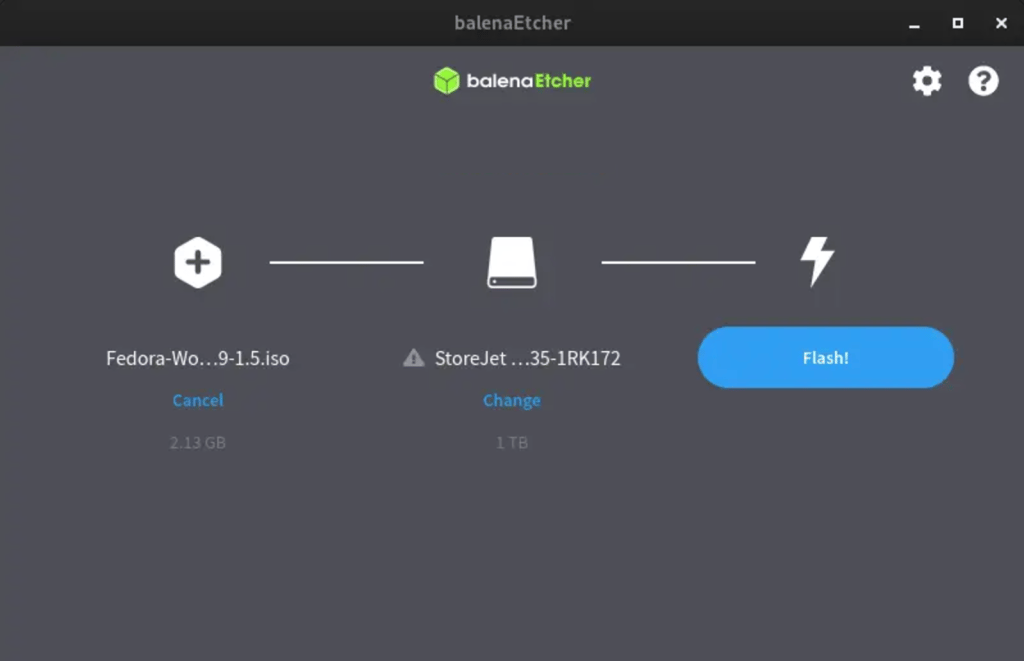
Step 3: Shrink That Windows Partition (Sorry, Windows)
- Hit
Win + X→ Disk Management - Right-click your C: drive → “Shrink Volume”
- Shrink by ~50-100GB (more if you want Fedora to stretch its legs)
- Voilà — now you’ve got unallocated space Fedora can colonize.
Step 4: Boot Into the Fedora USB
Time to break into your BIOS like a hacker in a bad movie.- Reboot your PC.
-
Smash your boot key repeatedly like it owes you money.
- F12 – Dell, Lenovo, Acer
- Esc – HP, ASUS
- F11 – MSI (because why not)
- Select the USB that says “Fedora” or something equally obvious.
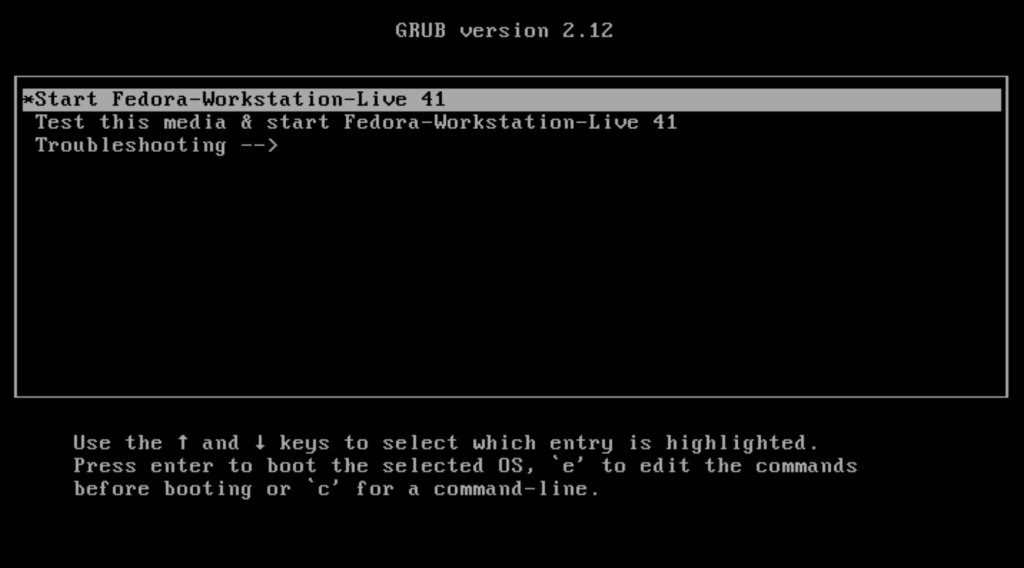
Welcome to Fedora 🎉
You made it this far. Congrats. You’ll see the Fedora welcome screen — hit Install unless you want to admire the boot screen forever.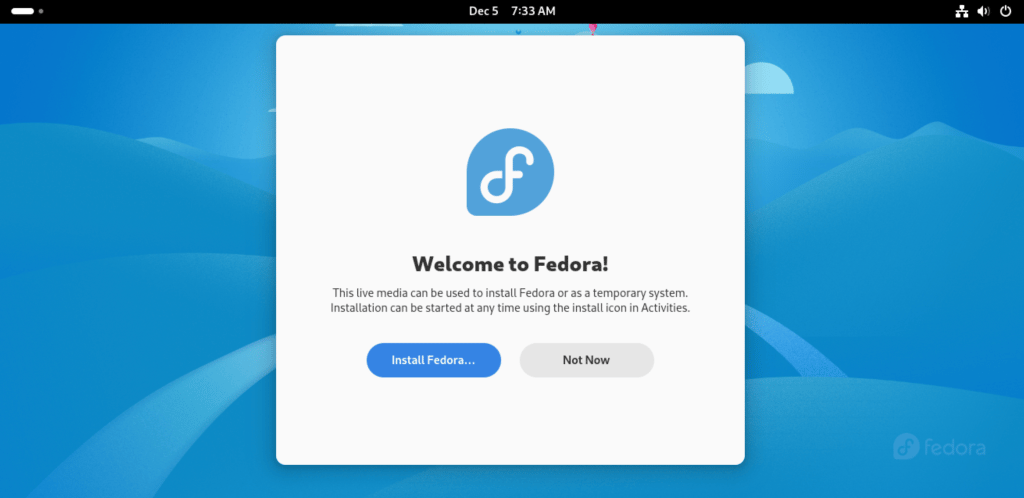
Installation
Language
Pick a language. No, Klingon isn’t available. Click Continue.Installation Destination
This part scares people. It shouldn’t. Here’s the cheat sheet:It is scary, believe me, I don’t lieThis is where you could accidentally wipe your entire disk. Pay attention.
- Install alongside your other OS (the lazy-safe route, just select this we are doing custom partitioning only for the sake of it, this is best for beginners)
- Wipe the whole disk (bold move, crazy people only)
- Mount existing stuff (not for us, skip it)
- Custom Partitioning (because we’re doing this like pros)
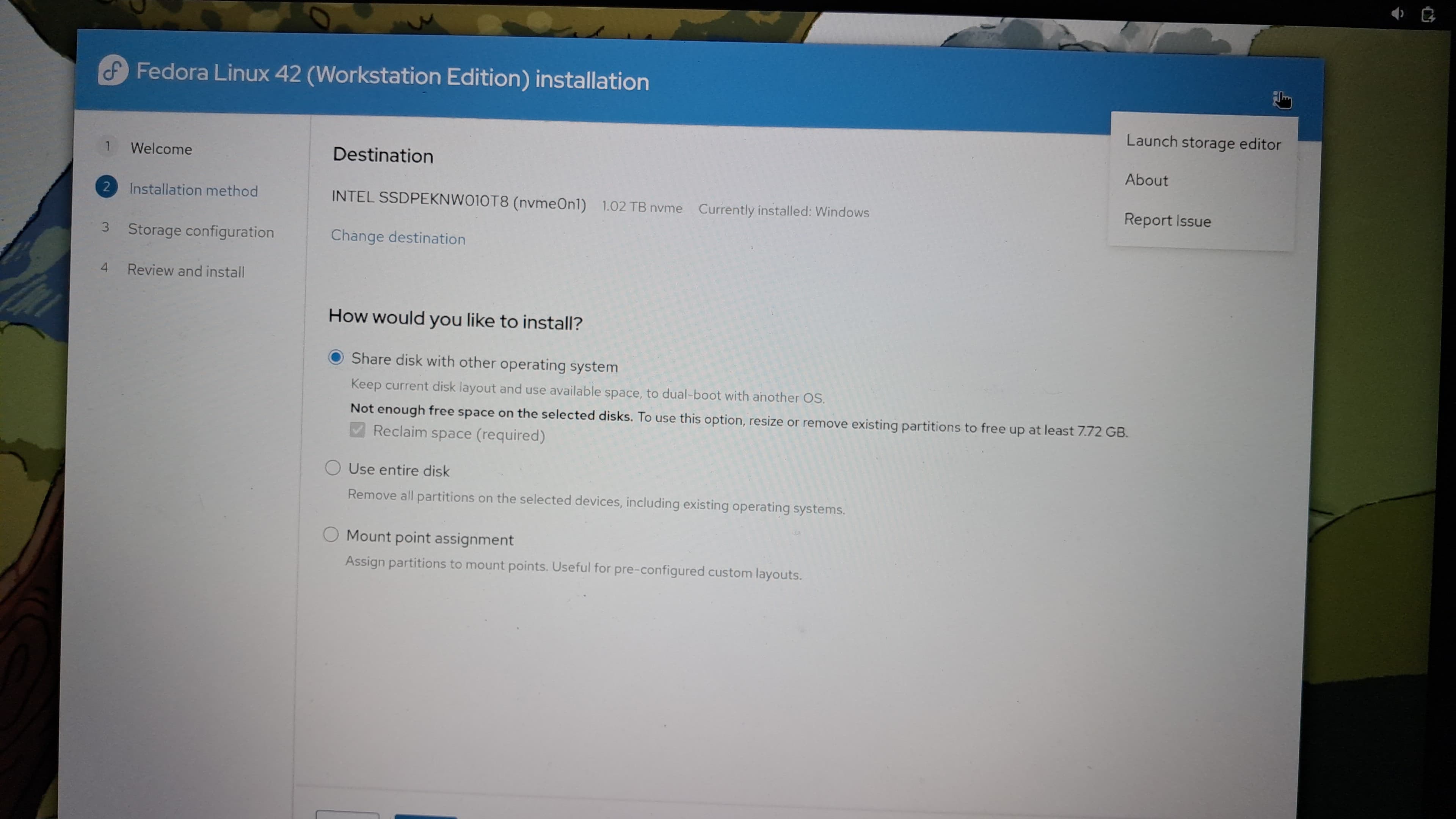
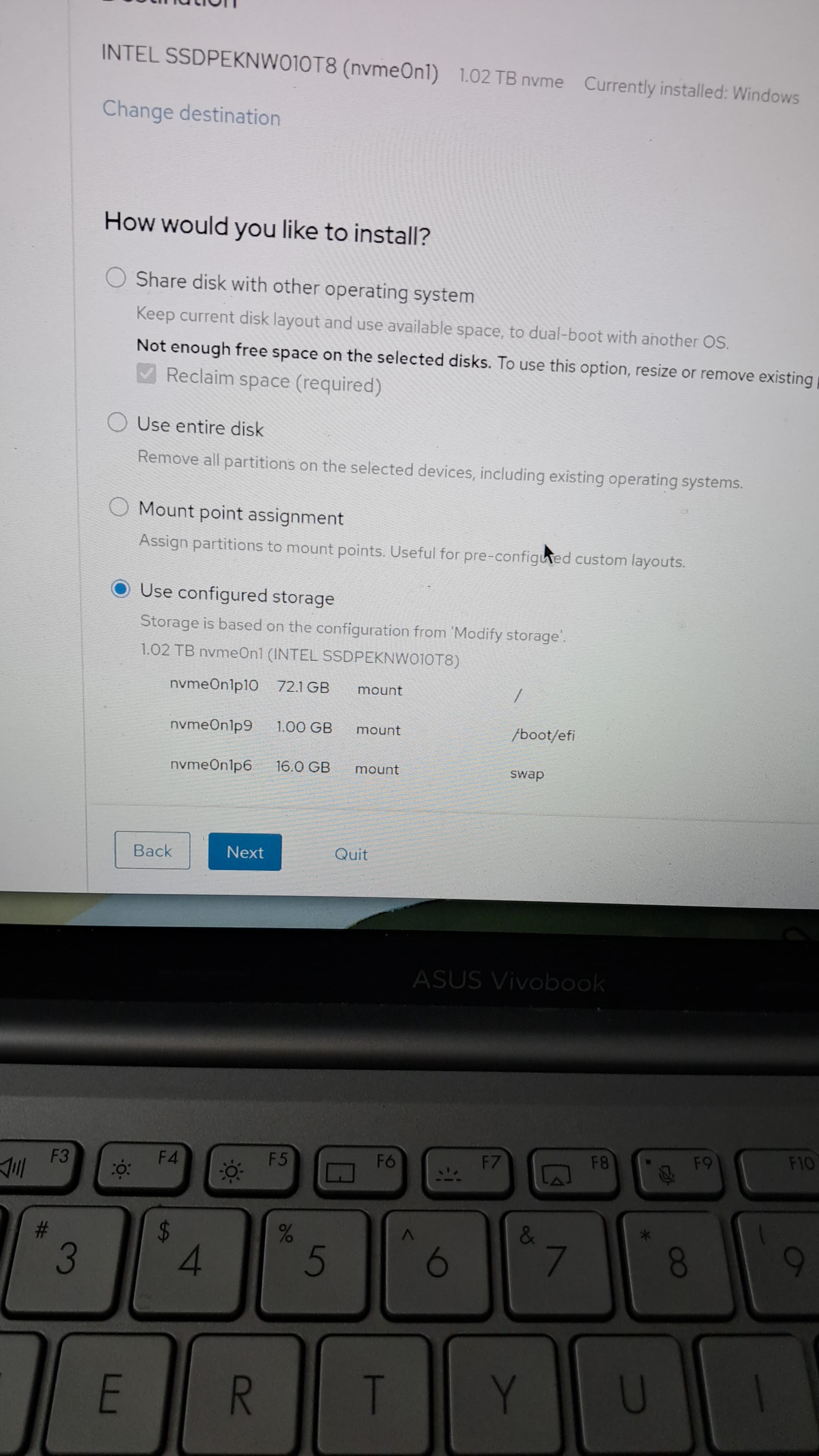
Partition 1: EFI
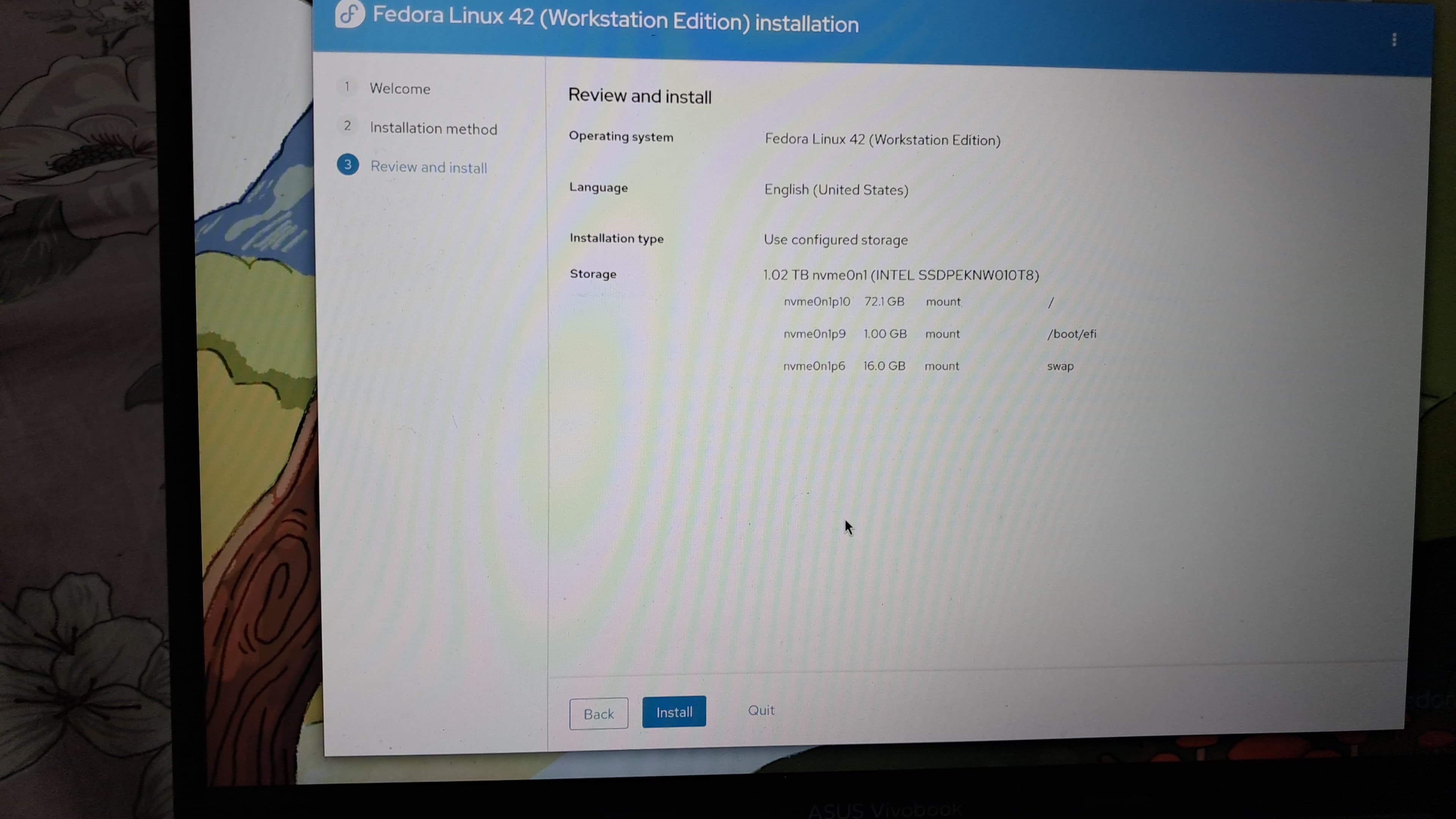
Because UEFI is fancy.- Size: 512MB (not 300MB like the image, ignore it)
- Type: EFI System Partition
- Mount Point:
/boot/efi
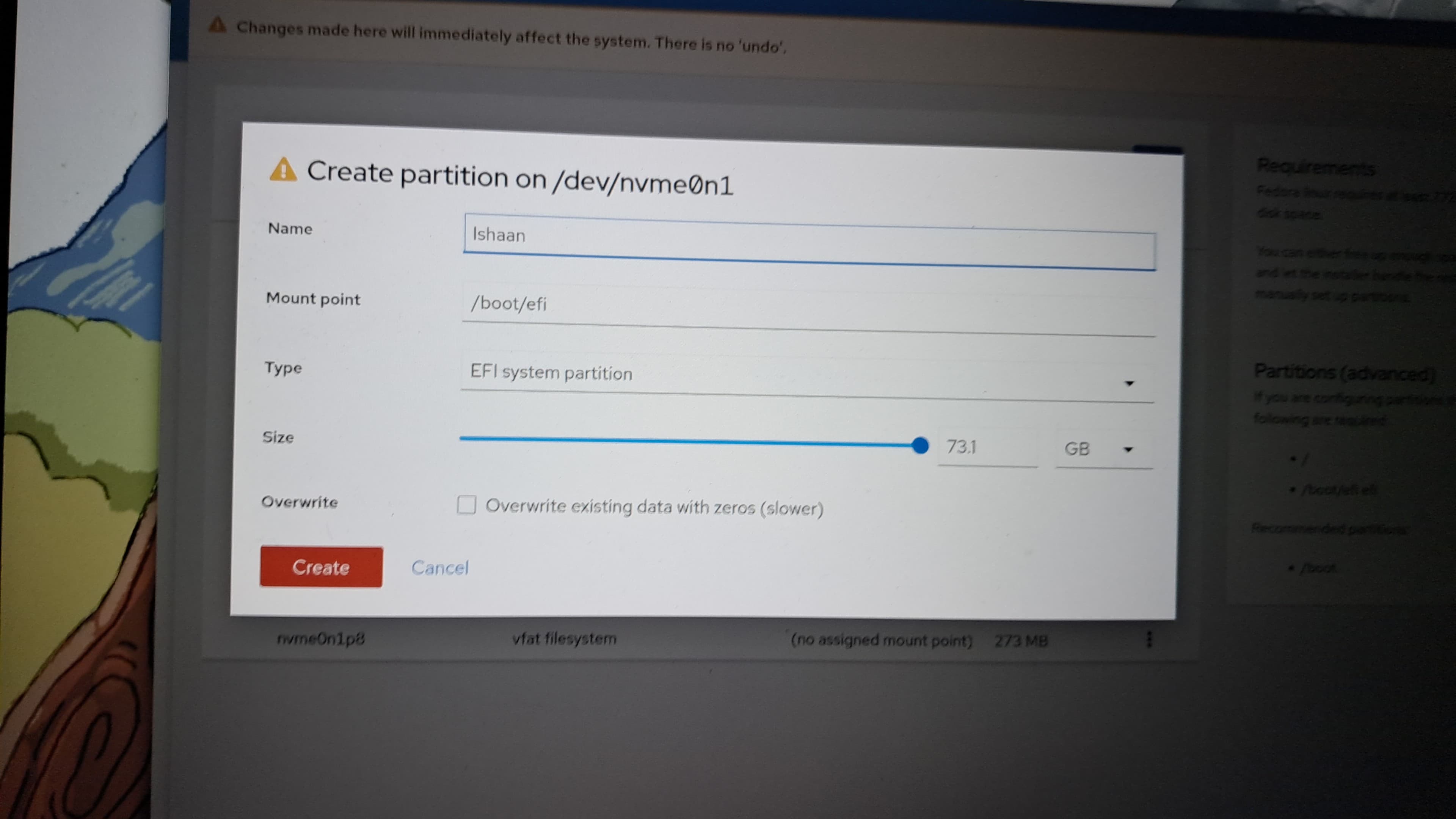
Yep, the image is lying about the size. It’s 512MB. Not negotiable.
Partition 2: Swap
When RAM gets tired, Swap steps in.- Size: Same as your RAM (or 2× if your RAM is sad and tiny)
- Type: Swap
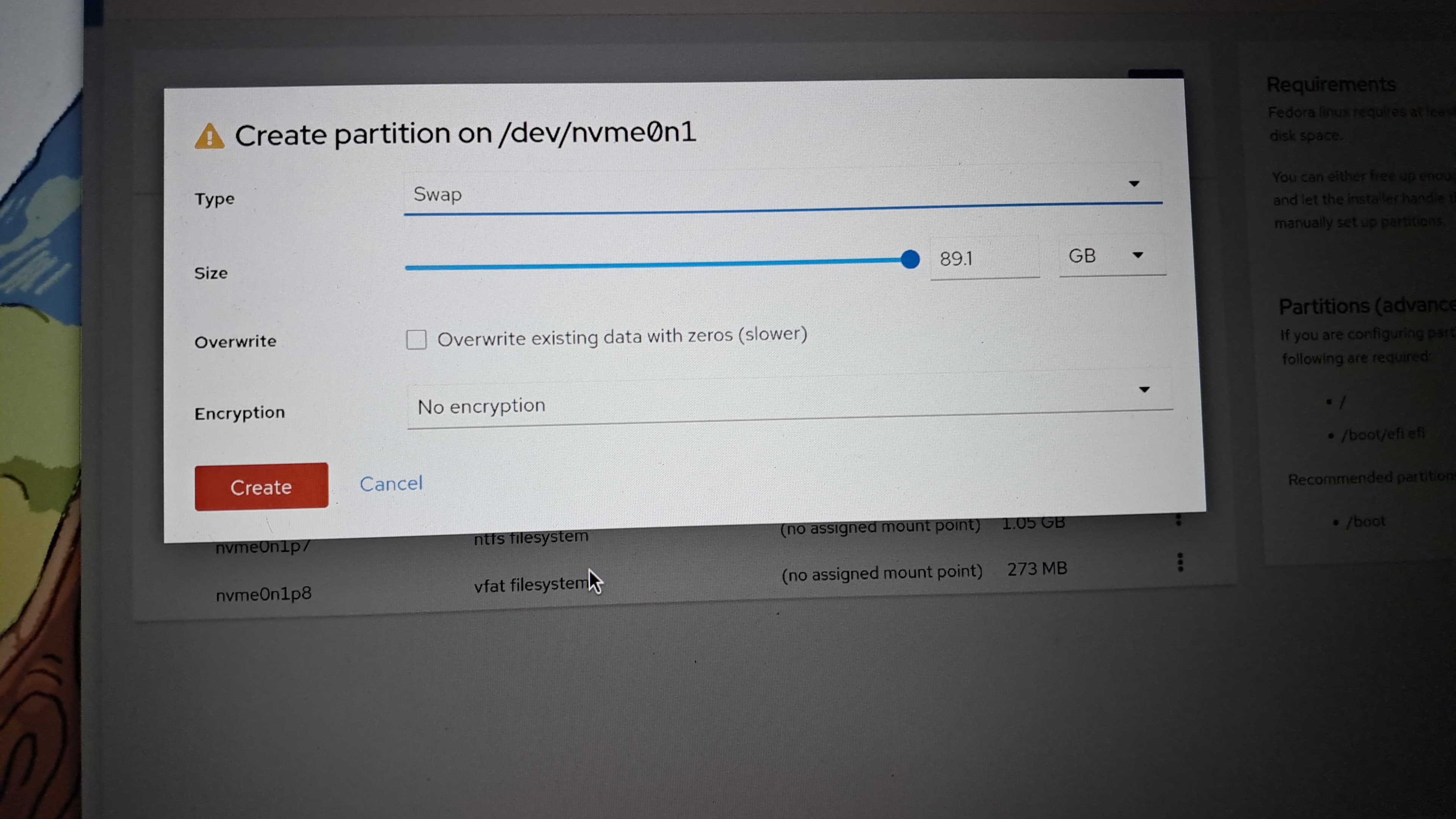
Image is still lying. Don’t trust its numbers either.
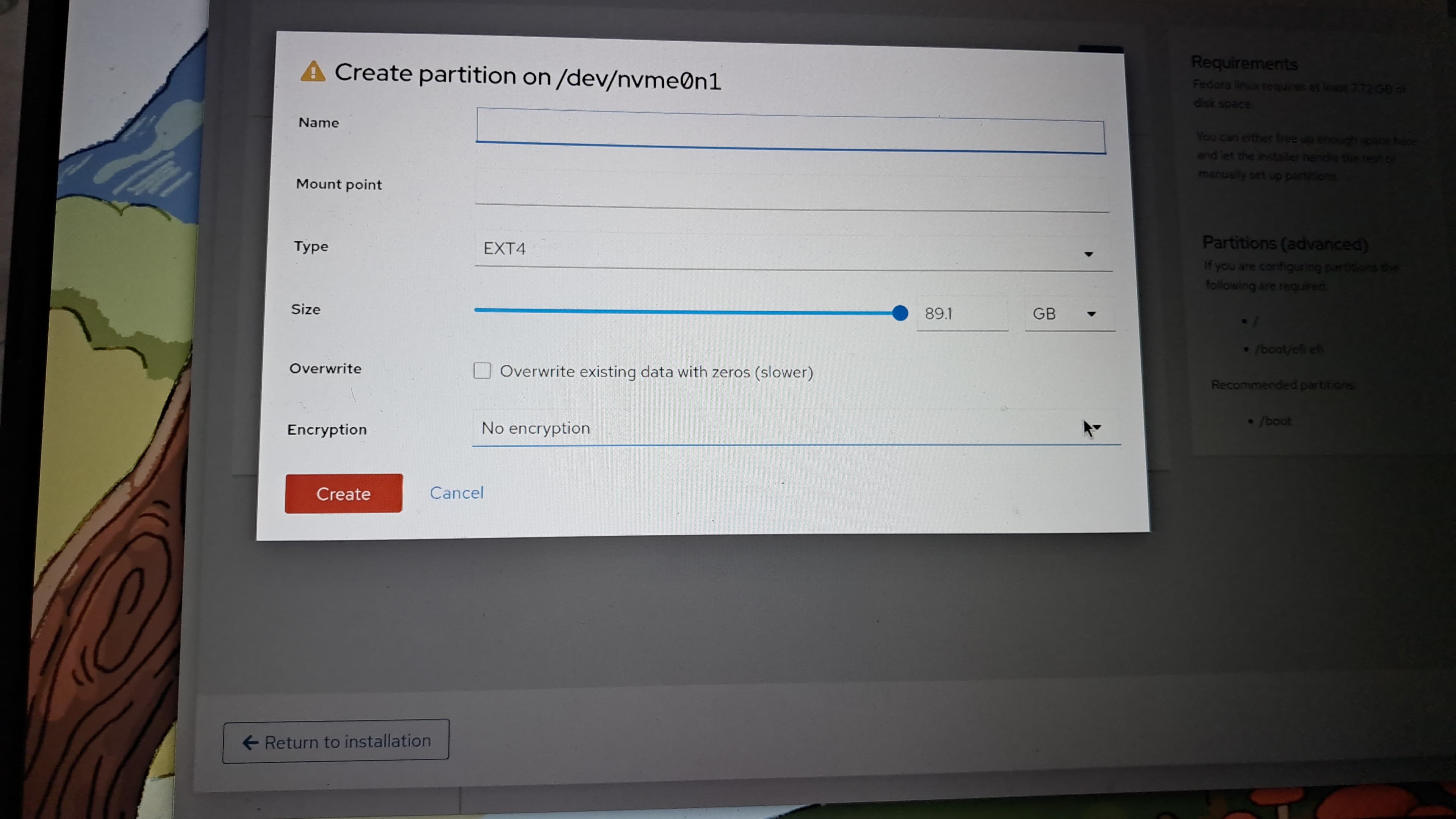
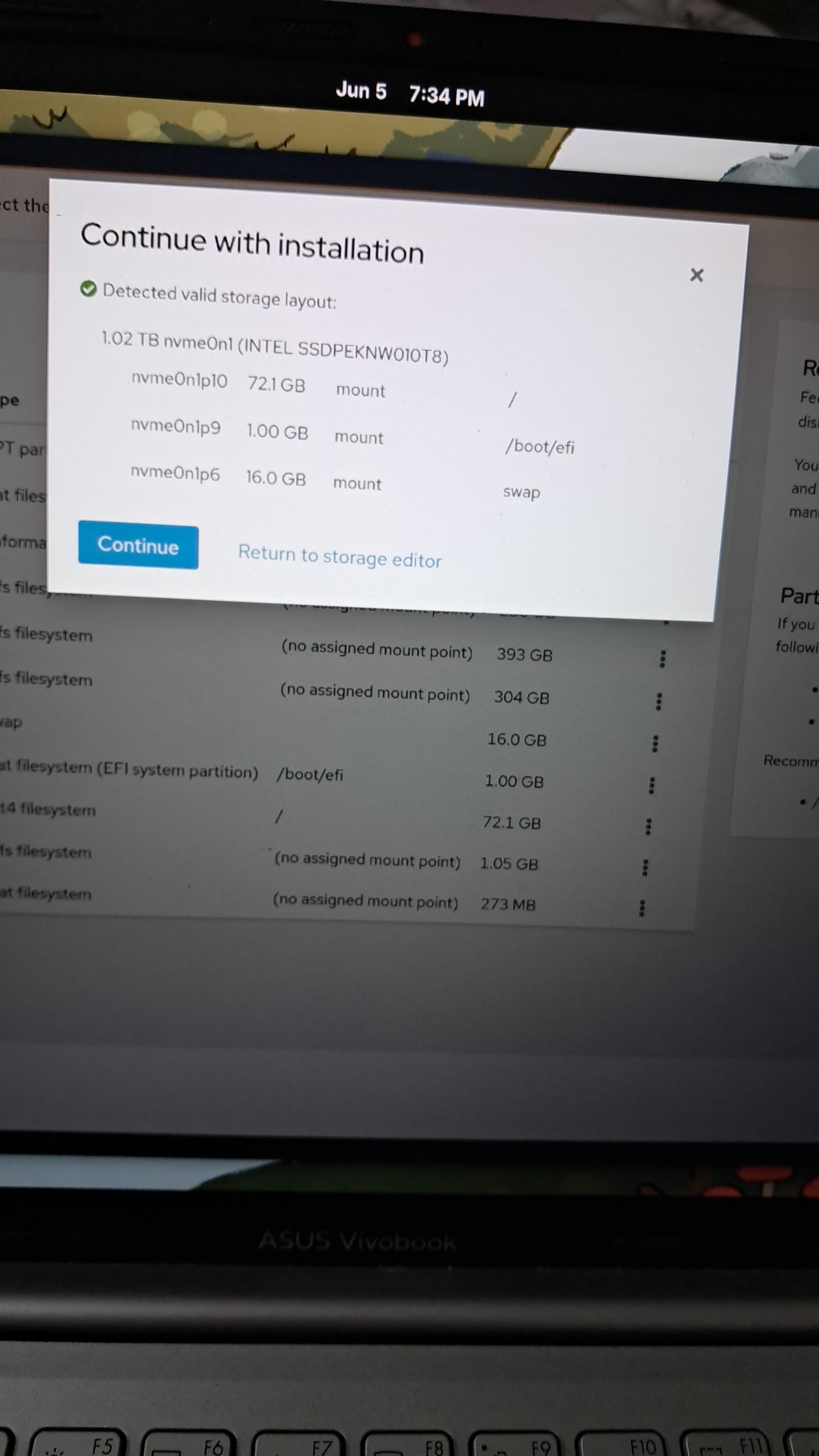
Partition 3: Root
Where Fedora lives.- Size: Whatever’s left
- Type: EXT4 (or BTRFS if you like feeling special)
- Mount Point:
/
Finalizing the Installation
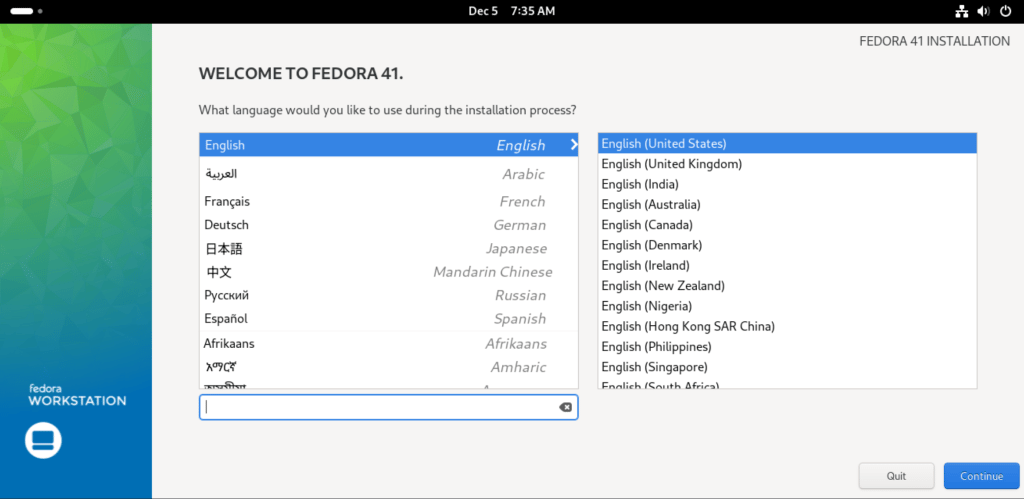
Now Fedora asks you a bunch of setup questions because apparently it’s needy.Language & Keyboard
- Pick what you want. Stick with US English unless you’re a keyboard masochist.
Privacy & Location
- Want your laptop knowing where you are? Enable it.
- Paranoid or battery-conscious? Turn it off.
Timezone
- Select Asia/Kolkata or wherever you actually live. Don’t lie.
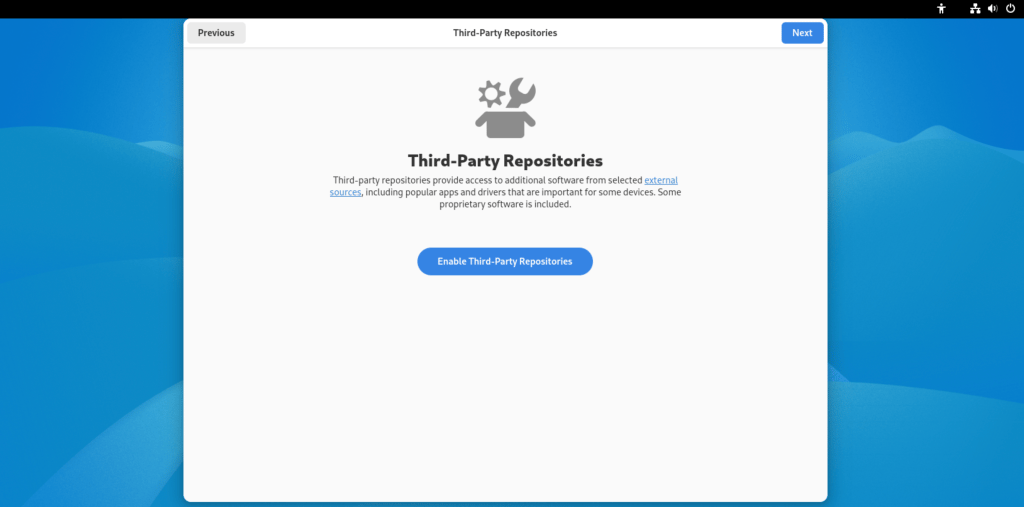
Third-Party Repos
- This lets you install stuff Fedora pretends doesn’t exist (like proprietary drivers and media codecs). Enable it. You’ll thank yourself later.
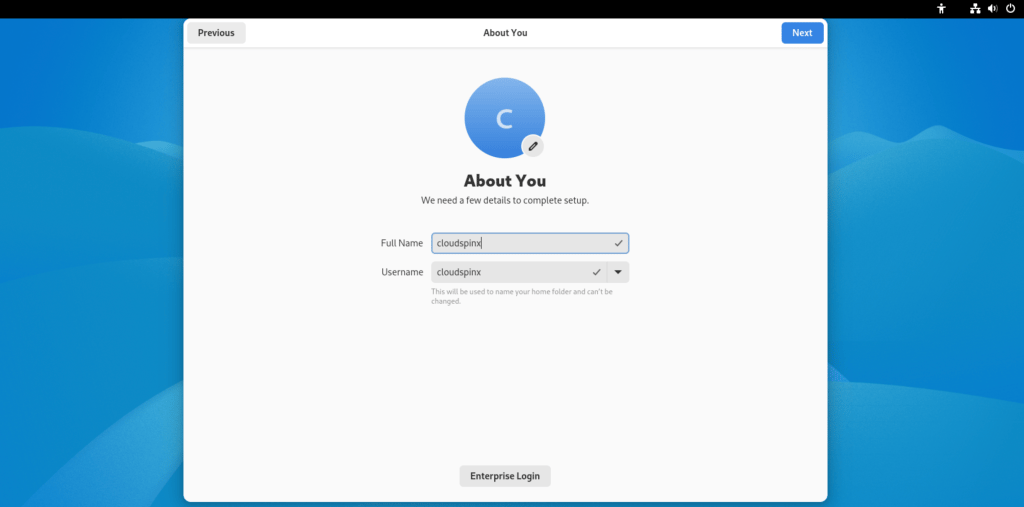
Create a User
- Enter your name, username, password.
- Pro tip: Don’t forget the password. Tattoo it if you must.
Post-Installation Stuff (The Boring but Necessary Bits)
Update Everything (Because Why Not?)
Open a terminal and do this:up, update or upgrade. Fedora’s cool like that.
Install Stuff You Actually Want
- Fedora comes with almost nothing you want. Fix that.